
Quick SnapTranslate

Turn screenshots into readable, translatable text without leaving the task in front of you.
A faster path through language barriers
Quick SnapTranslate combines capture, OCR, and translation into a single workflow that feels immediate. Whether the source is a webpage, PDF, image, subtitle, or software interface, it helps teams understand foreign-language content without the slow cycle of manual copying and separate translation tools.
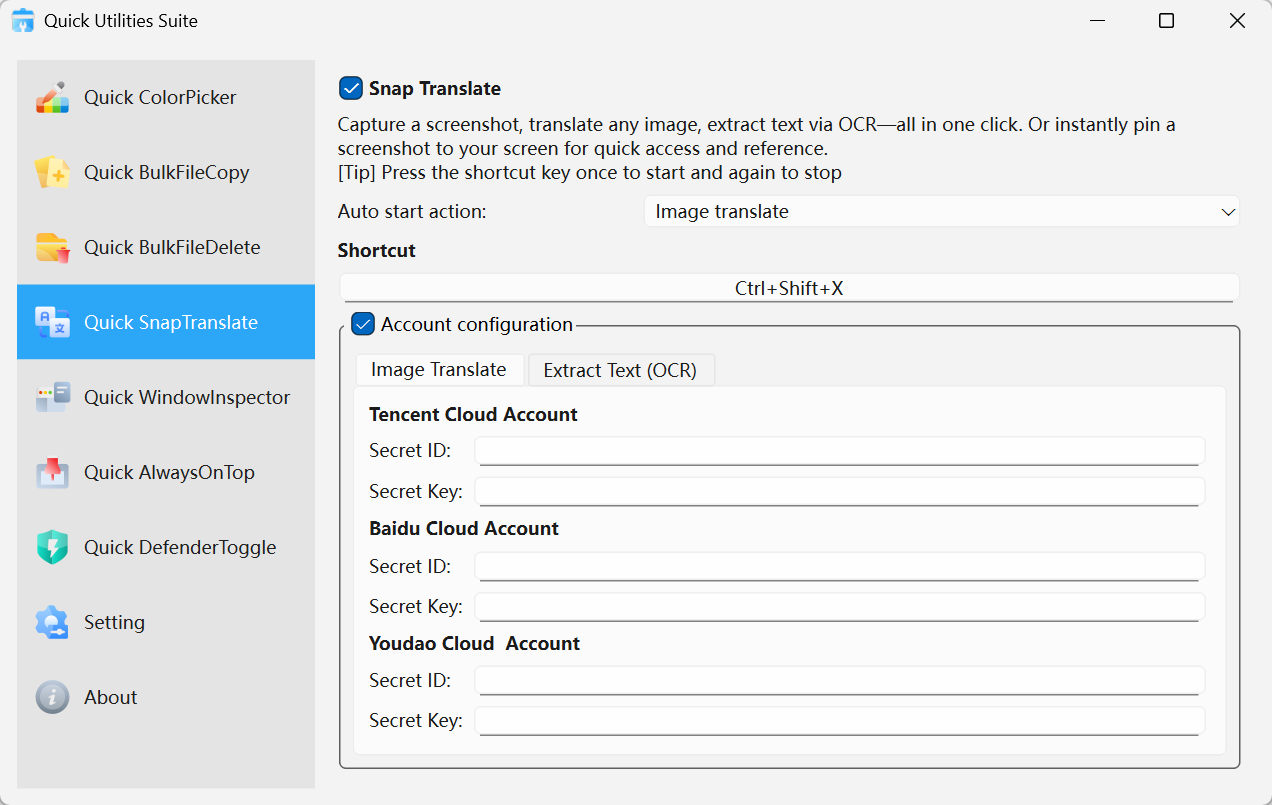
Quick SnapTranslate · Interface Preview
Why it is practical at work
Capture and recognize in one motion
Select the content you need and let the OCR pipeline surface the text quickly.
Translation that stays close to the source
Move from recognition to readable output without bouncing between multiple applications.
Flexible privacy and connectivity options
Use online services when speed matters or offline OCR when local handling is preferred.
Where it adds the most value
Global teams
Read documentation, emails, interface copy, and support material across languages more efficiently.
Research and education
Capture passages from papers, slides, or textbooks and translate them in context.
Technical work
Understand foreign error messages, product screens, and manuals without slowing down troubleshooting.
Get started in seconds
Launch the capture action
Use the shortcut or tray command to start a screenshot.Select the text region
Frame the part of the screen you want to recognize and translate.Use the result immediately
Copy, save, or pin the recognized and translated content where you need it.