Quick AlwaysOnTop
Keep the windows that matter exactly where you need them.
Designed for focused multitasking
Quick AlwaysOnTop gives you a direct way to keep reference windows, meeting panels, calculators, translators, and utility tools visible while the rest of your desktop keeps moving. It fits naturally into daily work because it changes window priority without forcing you to change applications or layout habits.
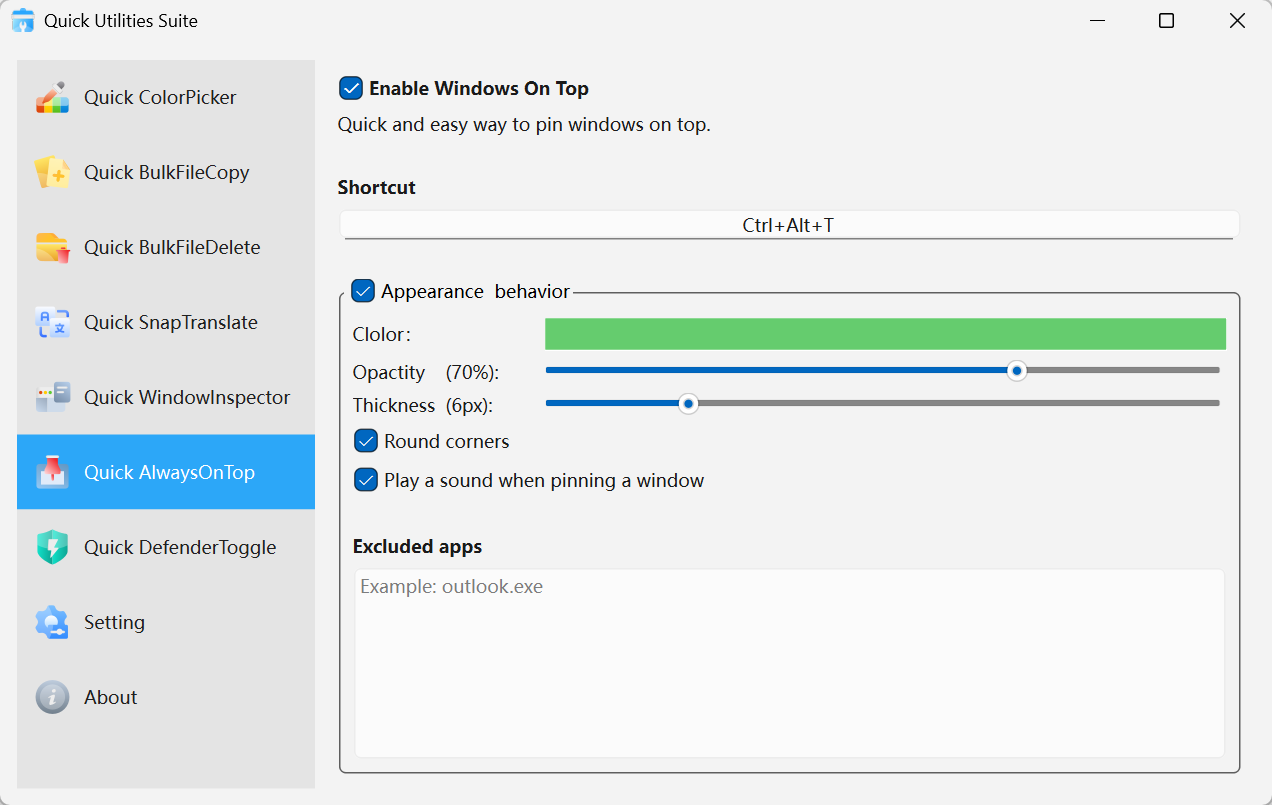
Quick AlwaysOnTop · Interface Preview
Why it stands out
Instant pin and release
Use a shortcut or tray action to keep the active window in front, then return it to normal just as quickly.
Clear visual feedback
Highlighted borders and optional prompts confirm pinned state immediately, reducing guesswork.
Useful across everyday apps
Works well with documents, browsers, chats, terminals, media panels, and utility windows.
Where it fits best
Development and operations
Keep logs, consoles, or reference docs visible while you work in another application.
Office productivity
Hold calculators, schedules, and collaboration windows in view without rearranging your desktop.
Meetings and live support
Keep a call window accessible while you continue working elsewhere.
Also worth pairing with Quick BrightnessSync
Quick AlwaysOnTop helps you manage attention on the desktop. Quick BrightnessSync helps you manage visual comfort across multiple displays. Together they cover two of the most common friction points on a serious Windows workstation.